Installation Guides
The fastest way to get started. Follow the step-by-step guides below to set up your subscription. Most users are up and running in under 5 minutes.
GetXtremeHD IPTV App
Our official app delivers the best experience with your subscription. Works on Fire Stick and all Android devices.
Setup on Amazon Fire Stick
⏱ Takes about 5 minutesInstall the Downloader App
On your Fire Stick, go to the Search bar and search for "Downloader". Install the free Downloader app by AFTVnews. If you already have it, skip to step 2.
Download the GetXtremeHD App
Open Downloader and enter the following code in the URL bar:
Or enter the full URL: http://aftv.news/1171008
Tap Go and wait for the APK to download, then tap Install when prompted.
Open App & Add Playlist
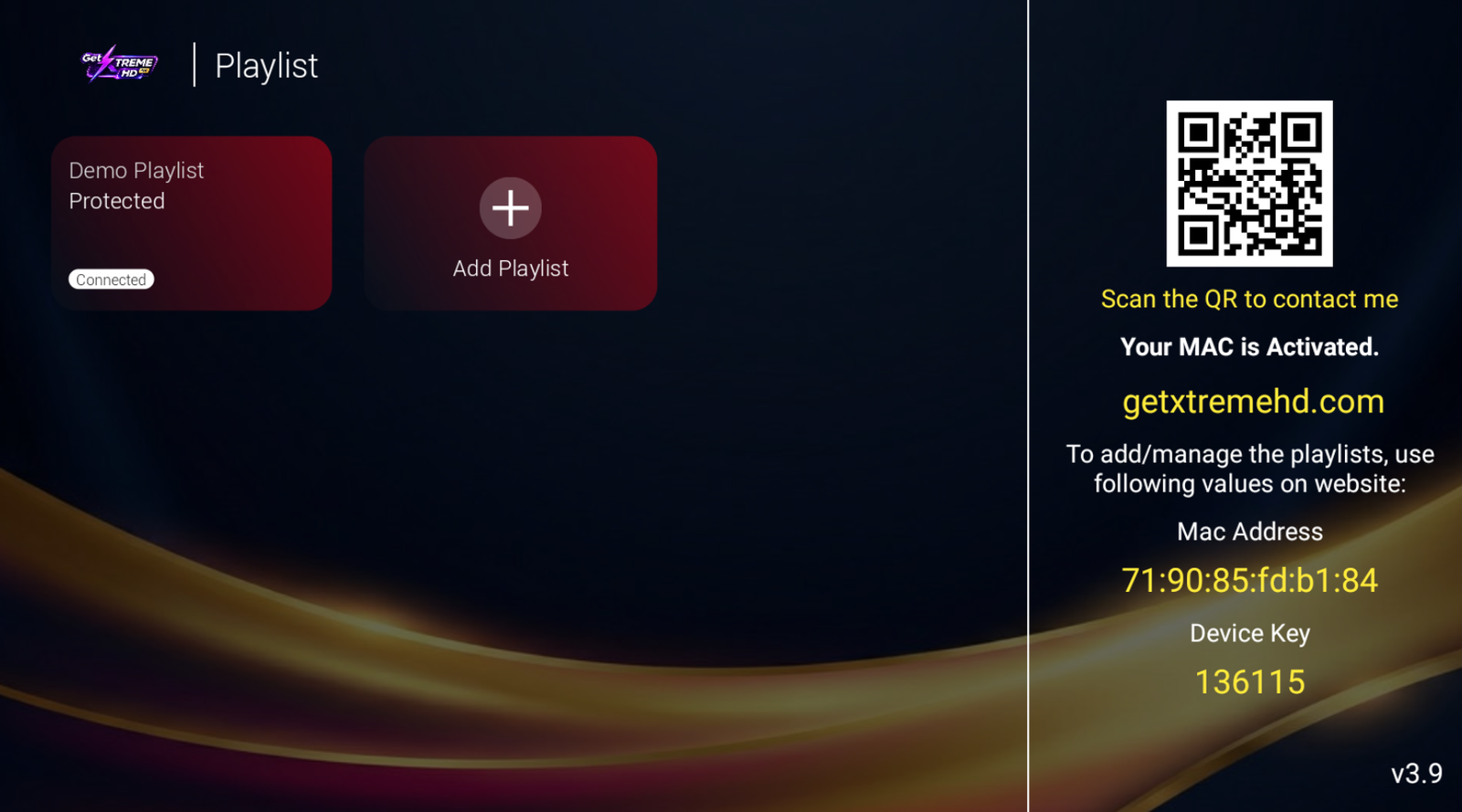
Open the GetXtremeHD app. You will see the main screen. Tap Add Playlist (the + button) to begin.
Tap "Add Playlist" or the + button to continue.Sign In with Your Credentials
On the login screen, enter your Username and Password exactly as shown in your confirmation email.
⚠️ Make sure "Use activation code" is NOT checked. Leave that checkbox empty.
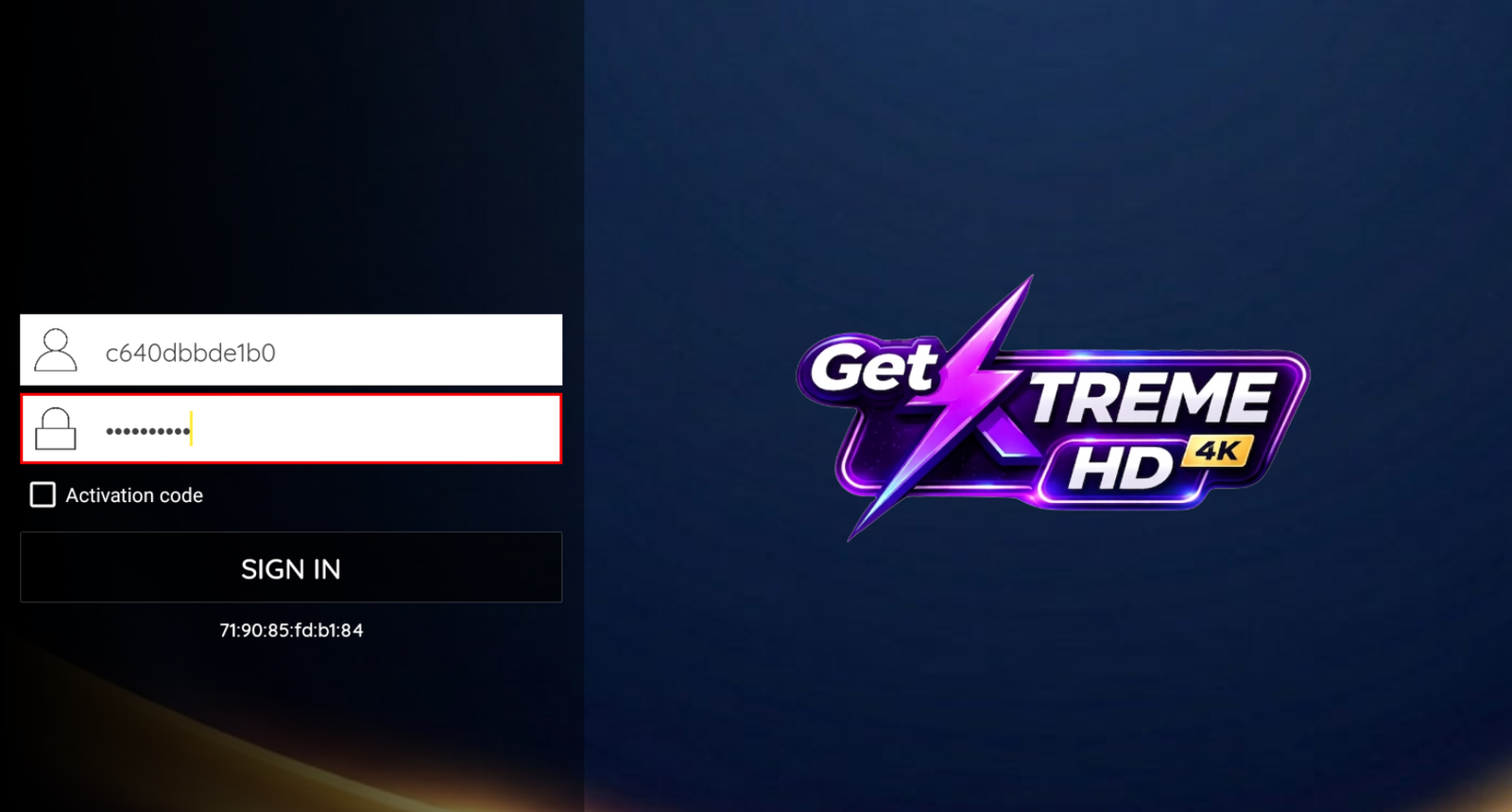 Enter your username and password. Do not check "Activation code".
Next, enter a name for your playlist. Anything you like, such as "Home TV" or "Living Room".
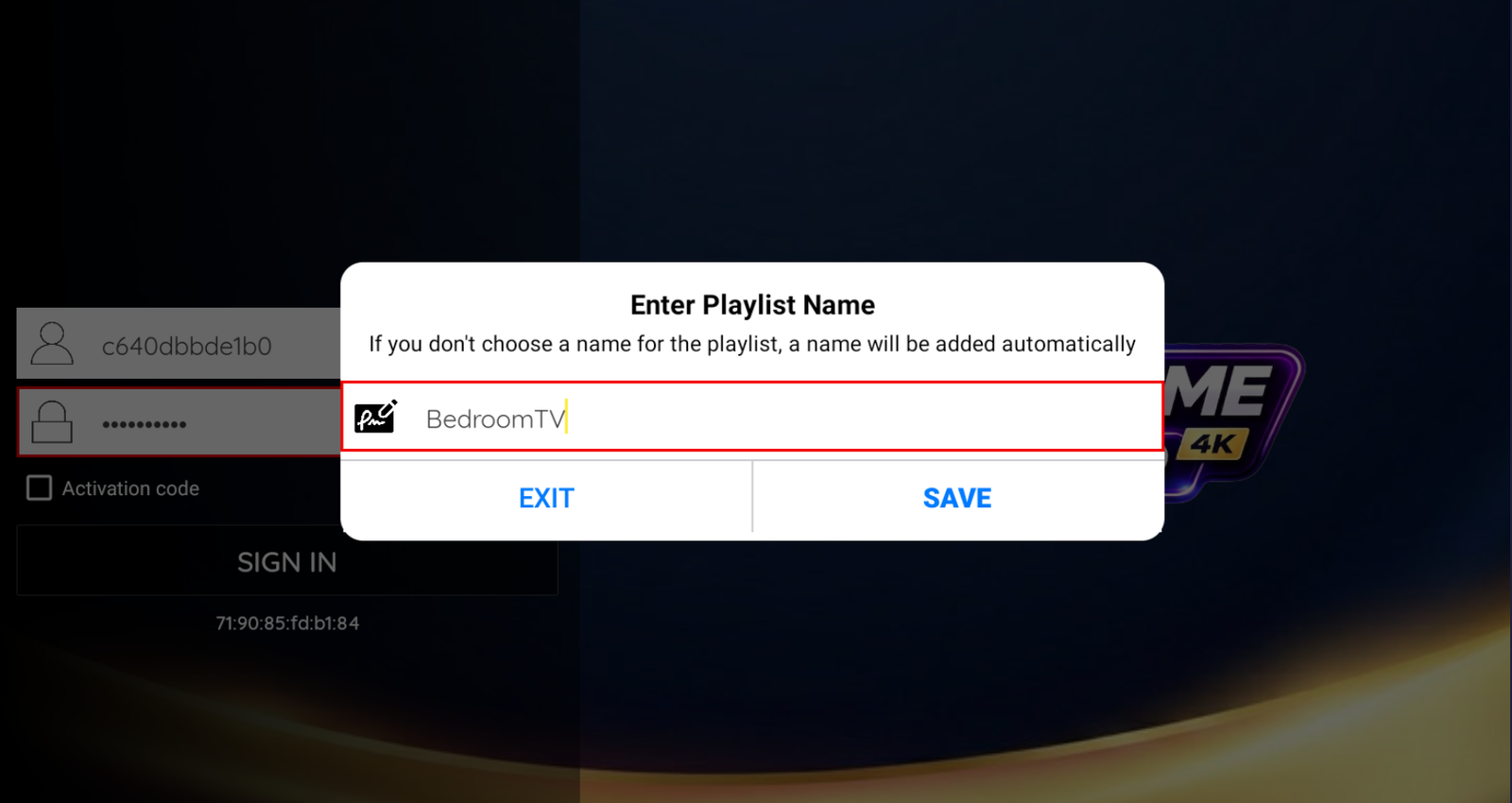 Give your playlist a name (e.g. "Home TV").
Tap Save or Sign In to continue.
Playlist Connected: You're Ready
Your playlist will show as Connected. Tap it to open the main menu.
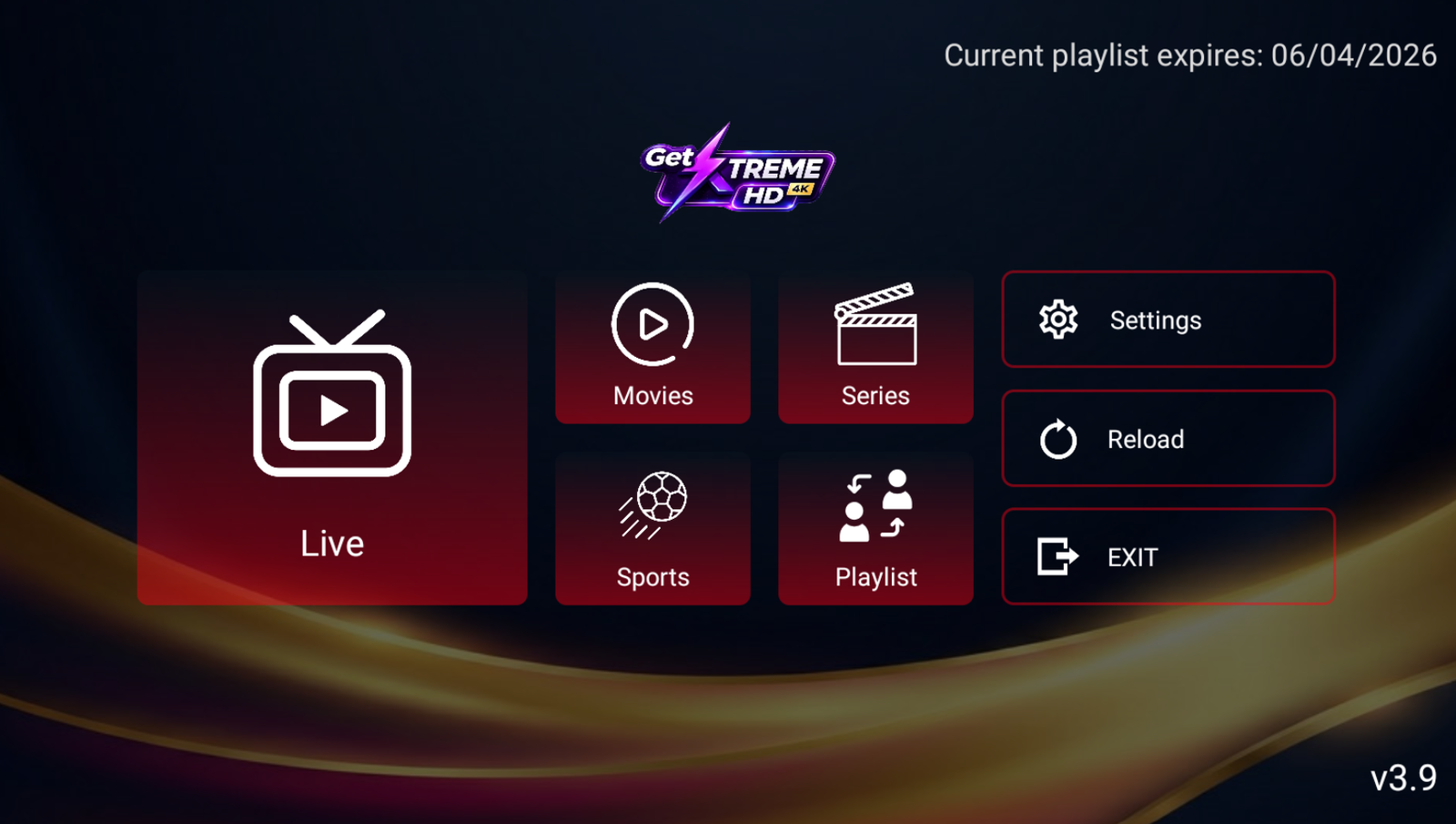 Playlist connected. Tap to open the app.
Start Watching
You now have access to Live TV, Movies, Series, and Sports. Browse any category and start streaming in 4K.
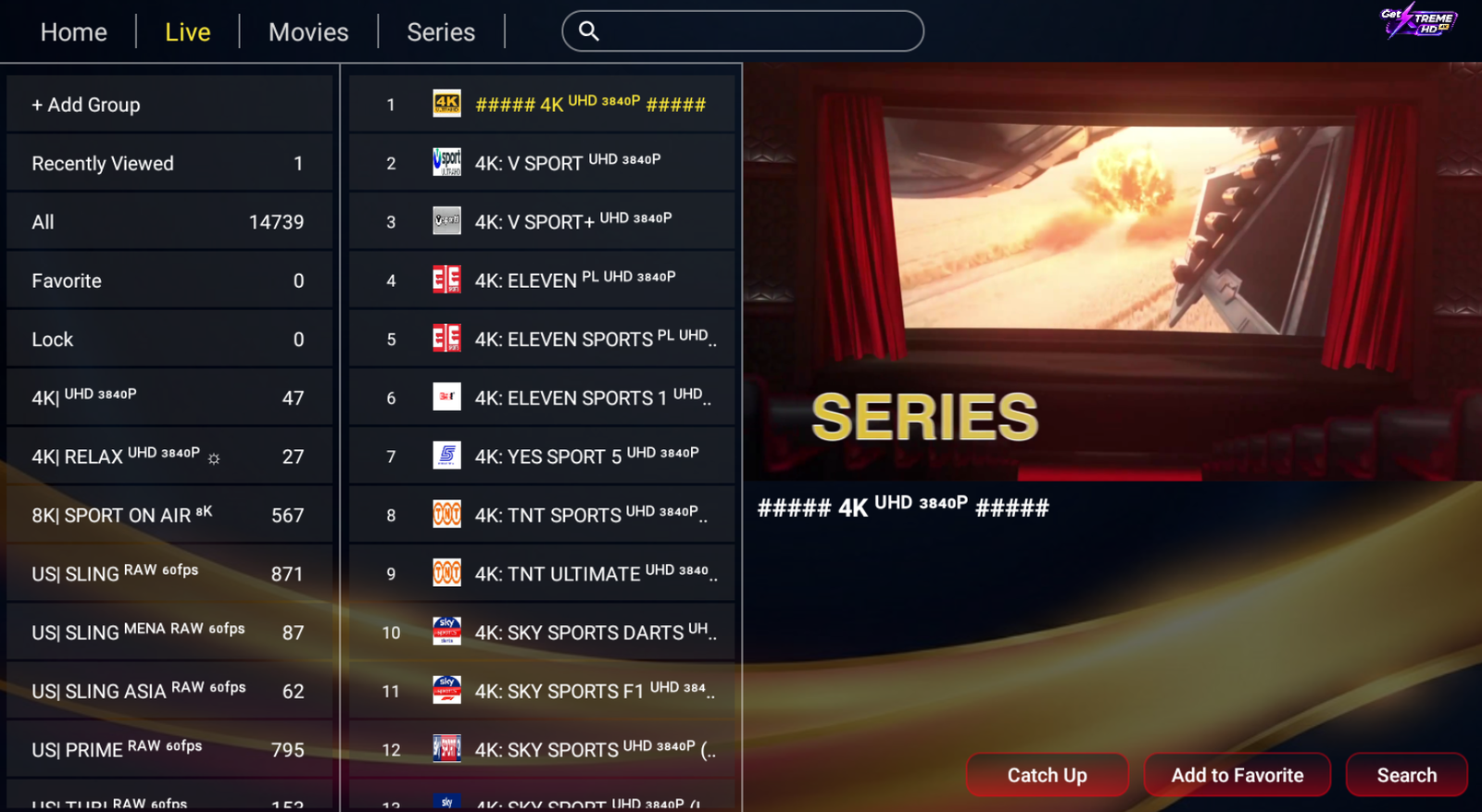 14,000+ live channels organized by category. 4K and 8K available.
Setup on Android Phone or Tablet
⏱ Takes about 3 minutesDownload the GetXtremeHD App
On your Android device, open a browser and go to:
Download the APK file. When prompted, tap Install and allow installation from unknown sources if asked.
Add Playlist
Open the GetXtremeHD app. Wait for it to load, then tap Add Playlist to begin setup.
Sign In and Start Watching
Give your playlist a name, then enter your Username and Passwordfrom your confirmation email. Do not check "Use activation code". Tap Sign In or Save. Your channels will load automatically.
Prefer a Different IPTV App?
Your GetXtremeHD subscription works with any public IPTV application, not just the GetXtremeHD app. Popular alternatives include IPTV Smarters Pro, TiviMate, GSE Smart IPTV, XCIPTV, Perfect Player, and VLC.
When setting up any third-party app, use the Xtream Codes API login method and enter the same username, password, and server URL from your confirmation email.
Vous utilisez un Smart TV, un appareil Apple ou un PC ?
Pour les Samsung et LG Smart TVs, Apple iOS / iPad / Apple TV, et les ordinateurs Windows ou Mac, utilisez une application IPTV tierce compatible. Cliquez sur votre appareil pour accéder au guide dédié.
Samsung et LG Smart TV
Recommandé : IBO Player, SetIPTV, DuplexPlay
Apple (iOS, iPad, Apple TV)
Recommandé : Smarters Pro, GSE Smart IPTV
Windows PC et Mac
Recommandé : VLC Media Player, Smarters Web
Besoin d'aide pour la configuration ? Notre équipe est disponible 24h/24 — contactez-nous sur WhatsApp / Email.
Need Help with Setup?
Our support team is available 24/7 and replies in under 10 minutes. Reach out via WhatsApp or email and we will walk you through the setup live.