Your iPhone Is Already the Best IPTV Device You Own
Forget the expensive cable box collecting dust in your living room. Your iPhone — the thing you carry everywhere — can stream over 20,000 live TV channels right now, and in 2026, the experience is better than it's ever been.
Setting up IPTV on iPhone in 2026 takes about five minutes. That's not marketing fluff. With iOS 19's improved background streaming capabilities and a handful of excellent third-party apps, your phone becomes a portable television that works on Wi-Fi, 5G, or even spotty hotel connections. I've tested this on planes, in Ubers, and at a campsite in Colorado with barely two bars of signal. It works.
This guide walks you through every step — from choosing the right iOS IPTV app to configuring your subscription, optimizing playback, and extending the setup to your iPad and Apple TV. Let's get into it.
What You Need Before You Start
Before touching any app, make sure you've got these basics covered:
- An iPhone running iOS 17 or later — iOS 19 is ideal, but anything from iOS 17 forward handles IPTV apps well. If you're on an iPhone 12 or newer, you're golden.
- A stable internet connection — 10 Mbps minimum for HD, 25 Mbps for 4K. 5G works great; public Wi-Fi usually doesn't.
- An active IPTV subscription — You'll need M3U credentials or Xtream Codes login details from your provider.
- A compatible player app — More on this in the next section.
One thing people overlook: disable Low Data Mode in your iPhone settings before streaming. Go to Settings → Cellular → Cellular Data Options and toggle it off. This single step prevents half the buffering complaints I see online.
Choosing the Best iOS IPTV App in 2026
Apple's App Store doesn't host IPTV services directly — you won't find a "watch free cable" button. Instead, you'll use a media player that accepts IPTV playlists. Here are the top options I've personally tested this year:
| App Name | Price | EPG Support | Xtream Codes | Best For |
|---|---|---|---|---|
| IPTV Smarters Pro | Free | Yes | Yes | Beginners |
| GSE Smart IPTV | Free (ads) / $6.99 | Yes | Yes | Advanced users |
| VLC Media Player | Free | No | No (M3U only) | Quick testing |
| IPTVX | $4.99 | Yes | Yes | Apple TV integration |
| 247 IPTV Player | Free | Yes | Yes | Simple interface |
My honest recommendation? IPTV Smarters Pro for most people. It's free, the interface is clean, and it handles Xtream Codes logins without any fuss. GSE Smart IPTV is more powerful if you want granular control over buffer sizes and user agents, but it has a steeper learning curve.
All of these are available directly from the Apple App Store — no sideloading or jailbreaking required.
Step-by-Step: Setting Up IPTV on iPhone (IPTV Smarters Pro)
Here's the exact process using IPTV Smarters Pro. If you're using a different app, the general flow is nearly identical — you're just plugging in the same credentials.
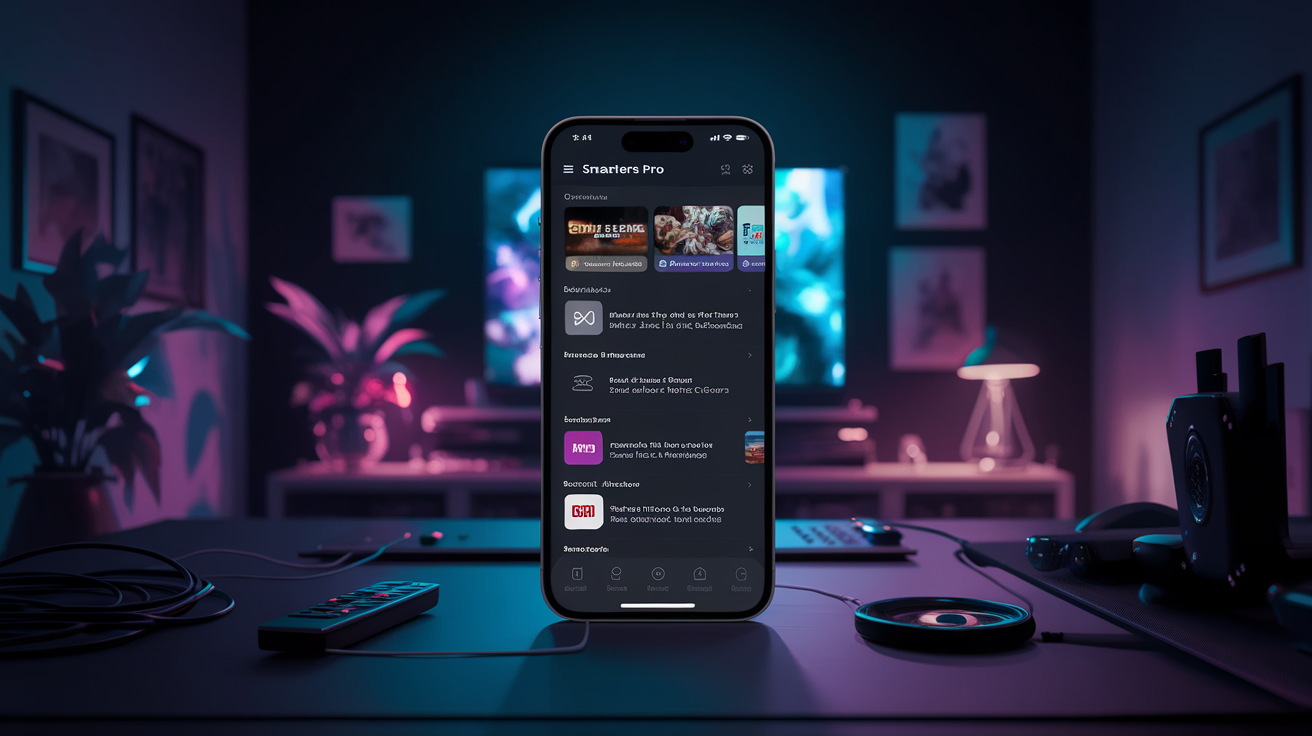
- Download IPTV Smarters Pro — Open the App Store, search for "IPTV Smarters Pro," and install it. It's about 85 MB.
- Open the app and select your login method — You'll see two options: "Load Your Playlist or File/URL" and "Login with Xtream Codes API." If your IPTV provider gave you a username, password, and server URL, choose Xtream Codes. If you received an M3U link, choose the playlist option.
- Enter your credentials — For Xtream Codes, fill in:
- Any Name: whatever label you want (e.g., "My IPTV")
- Username: from your provider
- Password: from your provider
- Server URL: the full http:// address your provider sent you
- Wait for the playlist to load — This can take 10–60 seconds depending on how many channels your subscription includes. A service with 20,000+ channels takes longer than one with 500.
- Browse categories and start watching — You'll see categories like Live TV, Movies, Series, and Catch-Up. Tap Live TV, pick a category (Sports, Entertainment, News), and select a channel.
- Enable the EPG (Electronic Program Guide) — Go to the app's settings and tap "Install EPG." This gives you a proper TV guide with show times and descriptions. It usually takes a minute or two to download.
- Adjust the player settings — Under Settings → Player, I recommend switching the video player to "Native" if you're on iOS 19. It handles hardware decoding better than the built-in player on Apple's newer chips.
That's it. You're watching live TV on your iPhone.
Pro Tip: If channels load slowly or buffer on first launch, force-close the app and reopen it. The initial playlist parse is always the heaviest — subsequent launches are much faster because the app caches the channel list locally.
Ready to try GetXtremeHD? Get a free 24-hour trial — no credit card, full access to 20,000+ channels.
Start Free Trial →Extending the Setup: IPTV iPad Setup and Apple TV
One of the best things about iOS IPTV apps is they sync across Apple devices. If you've got an iPad, the IPTV iPad setup process is identical to the iPhone steps above. Same app, same credentials, bigger screen. The iPad Air and iPad Pro displays make live sports genuinely enjoyable — the 120Hz ProMotion refresh rate on recent iPads keeps fast-moving action smooth.
For Apple IPTV streaming on the big screen, you've got two paths:
- AirPlay from your iPhone/iPad to an Apple TV — Swipe into Control Center, tap Screen Mirroring, and select your Apple TV. Simple, but adds a tiny bit of latency.
- Install a native app on Apple TV — IPTVX and Smarters both have tvOS versions. Enter your same credentials and you'll get a full remote-friendly interface on your television.
I personally prefer the native app route. AirPlay mirrors your entire screen, which means notifications pop up mid-stream. Nobody wants to see your group chat messages during a Champions League final.
If you also use a Firestick on another TV in the house, check out our Firestick setup guide — the process is slightly different on Amazon's platform.
Why Your IPTV Provider Matters More Than the App
Here's something most guides won't tell you: the app is just a shell. The actual streaming quality — picture sharpness, channel reliability, buffer times — depends almost entirely on your IPTV provider's infrastructure.
A cheap $3/month service with overloaded servers will stutter and freeze no matter which fancy app you use. I've tested dozens of providers over the years, and the gap between budget and premium is night and day.
GetXtremeHD runs Anti-Freeze™ technology that reroutes your stream to a backup server in under 200 milliseconds if the primary one hiccups. In practical terms, you don't see the switch happen — the channel just keeps playing. It's particularly noticeable during high-traffic events like NFL Sundays or Premier League match days when cheaper providers fall apart.
At $15/month for a single connection — or as low as $5.75/month on the annual plan — it isn't the cheapest option, but it's the one that actually works when you need it. You can try it free for 24 hours before spending anything.
For viewers primarily interested in US content, TVOnFly is another solid option worth considering alongside GetXtremeHD.
Troubleshooting Common iPhone IPTV Issues
Even with a perfect setup, you'll probably hit a snag at some point. Here are the most common issues and how to fix them fast:
Channels Won't Load or Show a Black Screen
First, check your internet. Open Safari and load any website. If that works, the problem is server-side — contact your IPTV provider. If Safari's slow too, restart your router or switch from Wi-Fi to cellular data to test.
Constant Buffering
Go to your IPTV app's settings and reduce the stream quality from "Auto" to "720p" or "SD." Also, check that no other device on your network is running a large download. One family member updating a PS5 game can tank your available bandwidth.
Pro Tip: If you're on Wi-Fi 6E or Wi-Fi 7, make sure your iPhone is connected to the 5GHz or 6GHz band, not 2.4GHz. The difference in streaming stability is dramatic. You can verify this in your router's admin panel under connected devices.
App Crashes on Launch
Delete and reinstall the app. This is almost always a corrupted cache issue. You'll need to re-enter your credentials, so have them handy. On iOS 19, you can also try offloading the app first (Settings → General → iPhone Storage → find the app → Offload) which clears the cache without removing your login data.
EPG Not Showing or Outdated
The program guide relies on your provider's EPG URL being active. In IPTV Smarters, go to Settings → EPG and tap "Refresh." If it's still showing old data, the issue is on the provider's end. Premium services like GetXtremeHD update their EPG data every 6 hours, so this rarely comes up.
Audio But No Video
This usually means the video codec isn't supported by the player engine. Switch your player from "Native" to "Software" in the app settings. This forces software decoding, which is slower but handles more codec formats. According to Wikipedia's overview of HEVC, most modern IPTV streams use H.265 encoding, which all iPhones from the iPhone 7 forward decode natively in hardware — but occasionally a provider will use an unusual codec profile that trips up the hardware decoder.
Frequently Asked Questions
Is IPTV legal on iPhone?
The technology itself is completely legal — it's just a method of delivering TV content over the internet. What matters is whether your content provider has proper licensing for the channels they offer. Apps like IPTV Smarters and VLC are legal too; they're generic media players you can grab from the official App Store.
Do I need to jailbreak my iPhone for IPTV?
Nope. Every app mentioned in this guide is available on the standard Apple App Store. Jailbreaking hasn't been necessary for IPTV on iOS since around 2019. You just download the player app normally and connect it to your IPTV subscription using the credentials your provider gives you.
Can I watch IPTV on iPhone without Wi-Fi?
Yes. Any cellular data connection works — 4G LTE, 5G, or 5G UC. HD streaming uses roughly 1.5–3 GB per hour, so keep an eye on your data cap if you don't have an unlimited plan. 5G connections generally deliver the best results due to lower latency.
What's the best free IPTV app for iPhone in 2026?
IPTV Smarters Pro. It supports Xtream Codes and M3U playlists, has a built-in EPG, and works reliably on iOS 17 through iOS 19. GSE Smart IPTV is a close second if you want more customization options.
Can I use one IPTV subscription on both my iPhone and iPad?
Depends on your provider's connection policy. Most providers, including GetXtremeHD, allow one active stream per connection. If you want to watch on two devices at the same time, you'd typically need a plan with two connections. Some providers offer multi-device plans at a discount.
Final Thoughts
Setting up IPTV on iPhone in 2026 isn't complicated — the hardest part is honestly just picking which app to use. Once your credentials are in, you're watching live TV in under a minute. iOS 19's improved media handling paired with a reliable provider makes the experience genuinely comparable to (and often better than) traditional cable.
If you don't have an IPTV provider yet, or you're fed up with one that buffers constantly, take a look at GetXtremeHD plans — 20,000+ channels, Anti-Freeze™ technology, and plans starting at $15/month. The free 24-hour trial lets you test everything on your own iPhone before committing. Got questions? The support team is available on WhatsApp at +44 7786 404877 and they're surprisingly fast at responding.