Your iPhone Is a Full-Blown IPTV Machine — Here's How to Unlock It
Most people don't realize their iPhone or iPad can replace a cable box entirely. With the right app and a solid IPTV subscription, you can stream 20,000+ live channels, on-demand movies, and PPV events right from your pocket — no jailbreak required.
This guide walks you through every step of getting Xtreme HD IPTV on iPhone and iPad, from choosing the right player app to fine-tuning your settings for buffer-free playback. I've tested these methods on devices running iOS 17 and iOS 18, so everything here is current and verified.
Let's get into it.
What You Need Before You Start
Before downloading anything, make sure you have three things ready:
- An active GetXtremeHD subscription — or grab a free 24-hour trial to test things out without entering a credit card.
- Your M3U URL or Xtend Codes credentials — these are sent to your email and WhatsApp after subscribing. You'll need your server URL, username, and password.
- A compatible IPTV player app — iOS doesn't have a native IPTV client, so you'll need a third-party app from the App Store.
That's it. No sideloading, no TestFlight links, no sketchy profiles. Everything runs through the official App Store.
Best IPTV Apps for iPhone and iPad in 2025
Not all IPTV players are created equal on iOS. Some crash constantly. Others can't handle EPG data. After testing about a dozen apps over the past year, here are the ones actually worth your time:
| App | Price | M3U Support | Xtream Codes | EPG Guide | Best For |
|---|---|---|---|---|---|
| GSE Smart IPTV | Free (ads) / $6.99 Pro | Yes | Yes | Yes | Most users |
| IPTV Smarters Pro | Free | Yes | Yes | Yes | Xtream Codes login |
| OPlayer Lite | Free | Yes | No | No | Simple M3U playback |
| VLC for iOS | Free | Yes (manual) | No | No | Quick testing |
My personal recommendation? GSE Smart IPTV on iPhone hits the sweet spot between features and usability. The pro version removes ads and adds picture-in-picture, which is genuinely useful on iPad. IPTV Smarters is a close second, especially if you prefer the Xtream Codes API login over raw M3U URLs.
Method 1: GSE Smart IPTV Setup (Step by Step)
GSE Smart IPTV has been the go-to IPTV player on iOS for years. It handles large channel lists without choking, supports multiple playlists, and has a built-in EPG viewer. Here's exactly how to set it up with GetXtremeHD.
Using Xtream Codes API (Recommended)
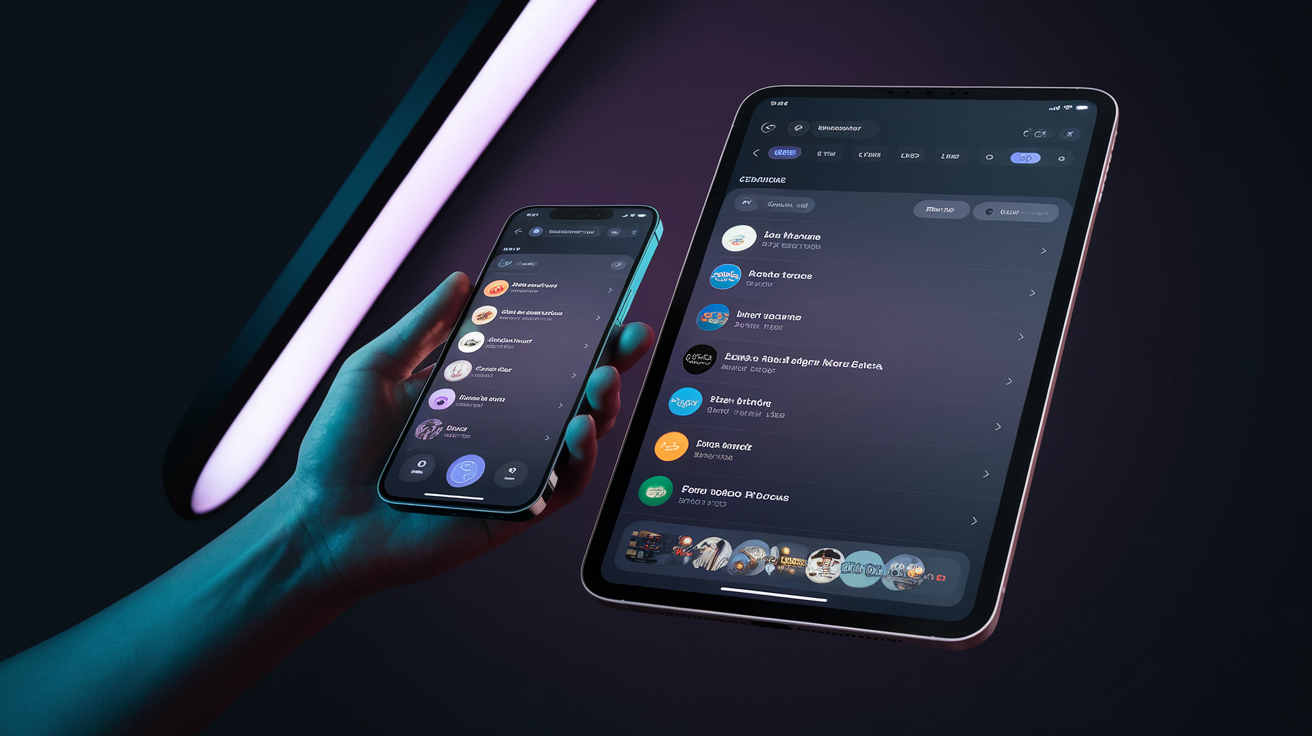
- Download GSE Smart IPTV from the App Store. Open it and allow any permissions it requests.
- Tap the hamburger menu (☰) in the top-left corner.
- Select "Xtream Codes API" from the sidebar menu.
- Tap the "+" icon in the top-right corner to add a new playlist.
- Enter the following details from your GetXtremeHD welcome email:
- Playlist Name: GetXtremeHD (or anything you like)
- Server URL: Your provided server address (including port number)
- Username: Your Xtream username
- Password: Your Xtream password
- Tap "Add" and wait for the channel list to load. On a decent connection, this takes 10-20 seconds for the full 20,000+ channel library.
- You'll see categories like Live TV, Movies, and Series. Tap into Live TV, pick a category (Sports, USA, UK, etc.), and start streaming.
Pro Tip: In GSE's settings, change the default player from "Built-in" to "VLC Integrated" under Player Settings. This fixes about 90% of playback issues people run into with certain stream formats. It handles H.265/HEVC streams much better than the native player engine.
Using M3U URL (Alternative)
- In GSE Smart IPTV, tap the hamburger menu → Remote Playlists.
- Tap the "+" icon, then select "Add M3U URL".
- Paste your M3U URL from the GetXtremeHD activation email into the URL field.
- Name the playlist and tap "Add".
- The channel list will populate. Tap any channel to begin playback.
The M3U method works fine, but you lose some organizational features like proper category sorting and the on-screen EPG grid. That's why I always steer people toward the Xtream Codes API method first.
Ready to try GetXtremeHD? Get a free 24-hour trial — no credit card, full access to 20,000+ channels.
Start Free Trial →Method 2: IPTV Smarters Pro on iPhone & iPad
IPTV Smarters Pro has a more TV-like interface with grid-style EPG, catch-up support, and multi-screen viewing. A lot of people prefer it over GSE purely for the layout.
- Install IPTV Smarters Pro from the App Store.
- On the login screen, select "Login with Xtream Codes API".
- Enter a name for the profile (e.g., "XtremeHD"), then input your server URL, username, and password.
- Tap "Add User" and let it connect.
- Once logged in, you'll land on a dashboard showing Live TV, Movies, Series, and your EPG. Tap Live TV to browse channels by category.
Pro Tip: If channels seem slow to load, go to Settings → Stream Format and switch from HLS to MPEGTS (.ts). This reduces the handshake time between your device and the server, cutting initial buffering by a few seconds on most channels.
Apple TV IPTV Setup: Stream From iPhone to the Big Screen
Watching IPTV on your phone is great for commutes and lunch breaks. But you probably want it on your TV too. There are two clean ways to do this with Apple hardware.
Option A: AirPlay from iPhone/iPad to Apple TV
If you've already got an Apple TV (4th gen or later), you can AirPlay your IPTV stream directly.
- Start playing a channel in GSE Smart IPTV or IPTV Smarters on your iPhone.
- Open Control Center (swipe down from top-right on iPhone X and later).
- Tap Screen Mirroring and select your Apple TV.
- The stream appears on your TV. You can lock your phone — playback continues.
AirPlay works, but it adds a small amount of latency (roughly 1-2 seconds). For live sports where every second counts, you'll probably want the next option instead.
Option B: Install an IPTV App Directly on Apple TV
IPTV Smarters and GSE Smart IPTV are both available on the Apple TV App Store (tvOS). The setup process mirrors the iPhone steps above — enter your Xtream Codes credentials and you're streaming natively without any mirroring delay.
Honestly, this is the better experience. The Apple TV's ethernet port gives you a wired connection option too, which takes Wi-Fi variability out of the equation entirely. Pair that with GetXtremeHD's Anti-Freeze™ technology — which reroutes streams to backup servers in under 200 milliseconds if your primary server hiccups — and buffering basically becomes a non-issue.
Pro Tip: On Apple TV, set the output resolution to match your IPTV stream quality. If you're watching HD channels (most of GetXtremeHD's library), set it to 1080p @ 60Hz under Settings → Video and Audio. Setting it to 4K when streaming 1080p content forces unnecessary upscaling that can introduce judder.
Troubleshooting Common iOS IPTV Issues
Things don't always go perfectly the first time. Here are the issues I see most often, along with fixes that actually work.
"Playlist Won't Load" or Spinning Forever
Double-check your M3U URL or Xtream Codes credentials for typos. One wrong character and you'll get nothing. Also make sure your subscription is active — expired trials won't connect. If you need help, GetXtremeHD has WhatsApp support at +44 7786 404877 and they usually respond within minutes.
Buffering or Freezing
Nine times out of ten, this is a local network issue, not a server problem. Try these fixes in order:
- Switch from Wi-Fi to mobile data temporarily — if buffering stops, your Wi-Fi is the bottleneck.
- Move closer to your router or switch to the 5GHz band.
- Close background apps. iOS aggressively manages memory, and too many open apps can starve your IPTV player.
- In your player app, try switching to a lower-quality stream if available (some channels offer SD and HD variants).
App Crashes on Launch
Force-close the app and reopen it. If that doesn't help, delete and reinstall. GSE Smart IPTV occasionally acts up after iOS updates — the developer usually patches it within a week. Keeping your apps set to auto-update helps.
No Sound on Certain Channels
This usually means the audio codec isn't supported by the player's built-in decoder. Switch to the VLC engine in GSE (Settings → Player → VLC Integrated) or try the same channel in a different app. That fixes it almost every time.
IPTV on iOS in 2026: What's Changing?
Apple's been gradually loosening restrictions on third-party apps in the EU under the Digital Markets Act requirements, and there's speculation that sideloading may become more accessible globally by 2026. For IPTV on iOS in 2026, this could mean more powerful player apps that aren't constrained by App Store review policies — think background playback improvements, PiP on all devices, and better codec support out of the box.
For now, though, the App Store options get the job done. GSE and IPTV Smarters handle things well for the vast majority of users without any workarounds.
If you're also looking for an option focused specifically on US-based content, TVOnFly at tvonfly.com is another solid IPTV choice worth checking out alongside GetXtremeHD.
Frequently Asked Questions
Can I use Xtreme HD IPTV on my iPhone without jailbreaking?
Absolutely. Every method in this guide uses apps available on the official Apple App Store. No jailbreak, no sideloading, no profiles. Just download GSE Smart IPTV or IPTV Smarters Pro and enter your subscription credentials.
Does GetXtremeHD IPTV work on older iPhones?
Yep, as long as your iPhone runs iOS 15 or later — that covers iPhone 7 and newer. Older devices might work but could struggle with HD streams due to hardware limitations. iPad Air 2 and later are all supported.
What's the best IPTV app for iPad in 2025?
GSE Smart IPTV Pro is the best overall pick for iPad. It supports split-screen multitasking, picture-in-picture, and landscape orientation with a clean EPG grid. IPTV Smarters Pro is a strong runner-up with its TV-style interface.
Can I use my GetXtremeHD subscription on multiple Apple devices?
Each GetXtremeHD subscription supports one connection at a time by default. If you need simultaneous streams on your iPhone and Apple TV, you'd need a second subscription or a multi-connection plan. Contact support via WhatsApp at +44 7786 404877 to ask about multi-device options.
Is there a free trial for Xtreme HD IPTV?
Yes. GetXtremeHD offers a completely free 24-hour trial with full access to all 20,000+ channels, VOD content, and features. No credit card required — just your email and WhatsApp number. It's the easiest way to test everything on your iPhone before committing.
Wrapping Up: Start Streaming on Your iPhone Today
Setting up IPTV on an iPhone or iPad really isn't complicated once you know which apps to use and how to enter your credentials. The whole process takes under five minutes.
If you want the full breakdown for Amazon devices too, check out our Firestick setup guide — same great service, different hardware.
Ready to pick a plan? Browse GetXtremeHD plans starting at just $15/month — or $69 for a full year if you want the best per-month value. With Anti-Freeze™ technology keeping your streams locked in and 24/7 WhatsApp support if anything goes sideways, it's a pretty easy call.